Sitecore just added the ability to create custom hostnames in XM Cloud Portal. Previously, this could be done using the Edge platform admin API. But now they are even easier to manage!
Custom hostnames allow organizations to align their domain names with their brand, other benefits include: – Ensures first-party tracking – Enhances SEO – Improves media search and indexing – Reduces CORS and blocklisting issues – Simplifies access to APIs
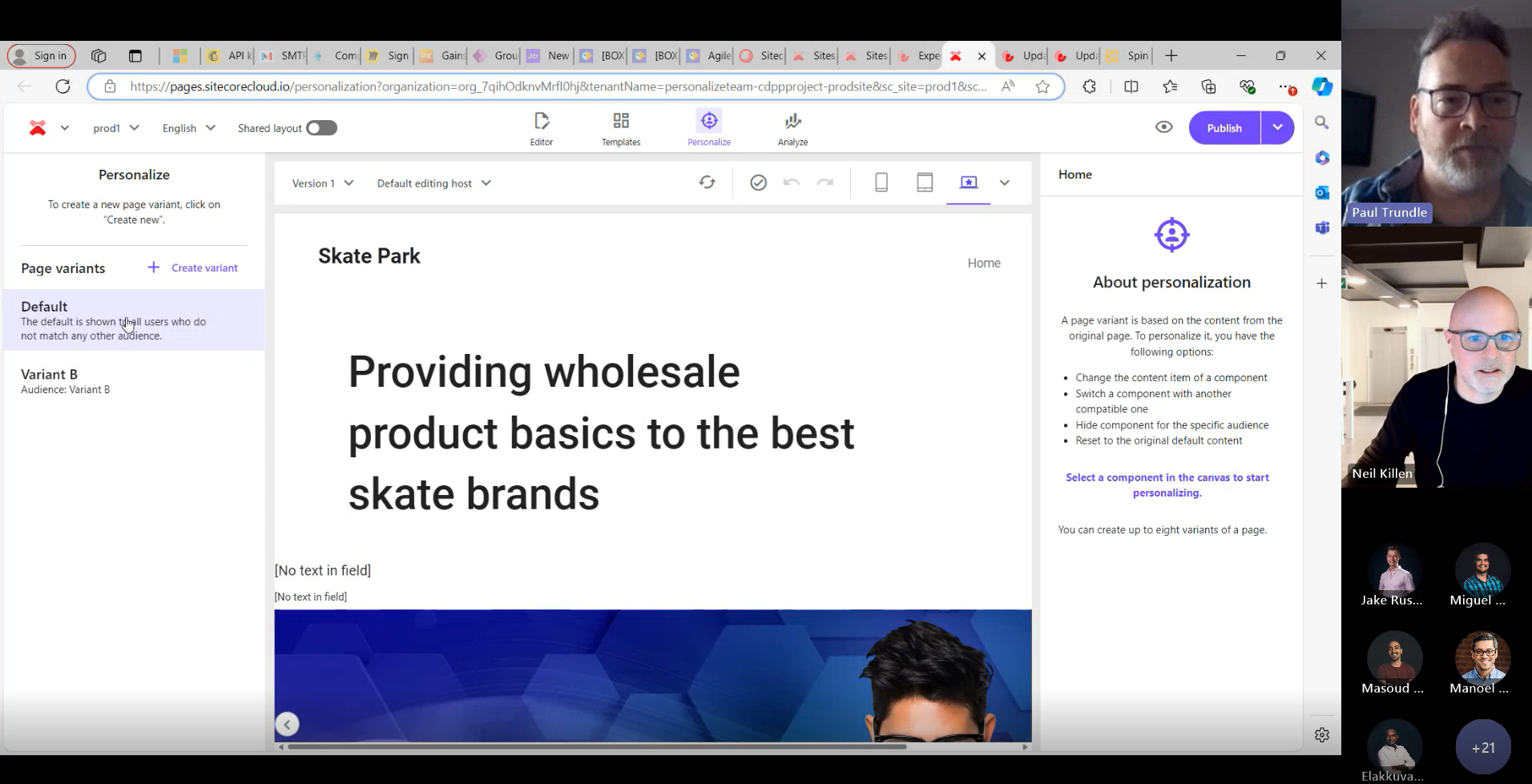
Senior Product Manager Paul Trundle joined our Craft Circle meetup last week to discuss and answer questions about the recent product updates and future innovations in Sitecore Personalize. From notifications, entity migration and the their recent A/B/n testing feature in XM Cloud to a cutting-edge journey orchestration and conditions builder, the session offered a glimpse into how Sitecore are acting on feedback from marketers and developers to incorporate features that make it intuitive to craft smarter, more engaging personalized experiences. This post dives into those recent feature and explores some of the roadmap features Paul shared.
Enhanced Notifications
In June Sitecore Personalize included a new feature making it easier to stay updated on changes to your experiments and experiences with notifications. You can enable notifications for your own email address or add multiple recipients to keep your team informed. Once set up, recipients will receive alerts whenever an experiment or experience is started, completed, paused, or resumed. Each notification includes details about who made the change, what action was taken, and when it occurred—along with a direct link for quick access to the specific experiment or experience. To update the recipient list, head to the Notifications tile and remove any unwanted email addresses.
Copy To Tenant
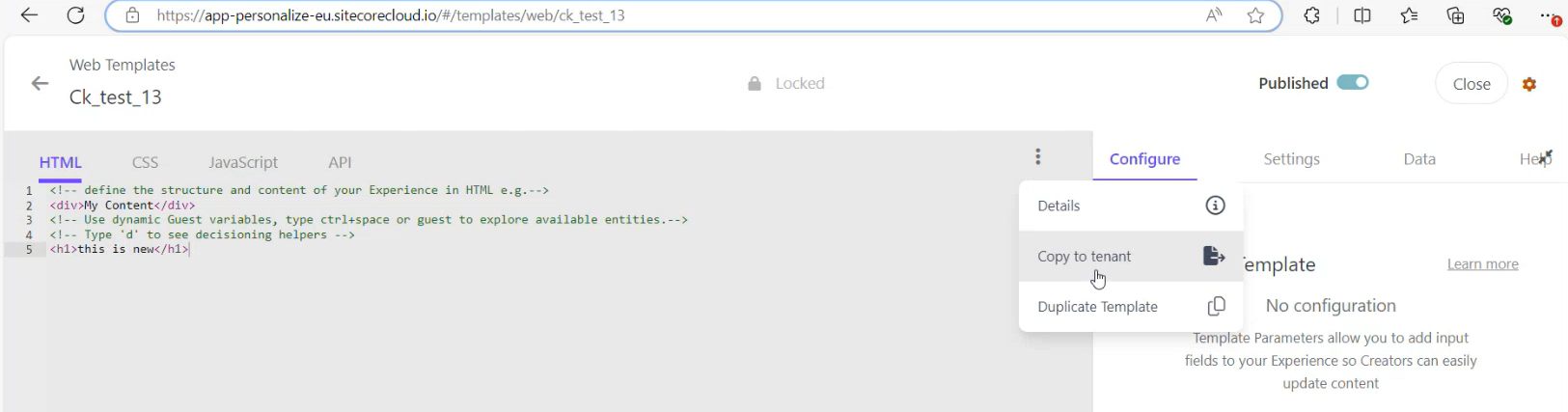
The Copy to Tenant feature allows you to easily copy entities between tenants within the same region. With just a few clicks you can easily copy web templates, conditions, decision templates, JS modules, connections, offers, offer templates and your point of sale.
1.From the entity you want to copy simply choose Copy to tenant option:
2.Choose your destination (it must be within the same region):
3.Create an exact copy of an asset or rename the asset before you copy it to the destination tenant:
4.Personalize will also perform collision detection and warn you if there is an asset with the same name in the destination, preventing you from potentially overwriting an existing entity:
As you can see this makes it really easy to transfer your entities between your tenants.
In this post, I’ll share some useful info, handy tips, and tricks to help you get started with Sitecore XM Cloud.
XM Cloud Portal
The Sitecore Cloud Portal is your hub for everything in XM Cloud. You can manage and switch between the various apps seamlessly: XM Cloud, XM Cloud Deploy App, etc. There are handy links to documentation and the Sitecore Support Portal. You can even create new support cases without leaving the portal.
Check out the XM Cloud Introduction it has some helpful information, links, and videos to get you started.
Navigating XM Cloud
Switcher – the multi-dot menu icon opens the switcher and allows you to switch between organizations, projects, and apps.
Home – each App has a home page providing access to the main features.
Admin – if you are the administrator of one or more organizations you can manage members of those organizations, you can:
Quick actions – let you easily access important features.
Apps section – clicking on one of these instances, opens a side panel to the right with direct links to quick actions available for that instance.
XM Cloud Dashboard – where you create and manage your websites and access all your XM Cloud Tools. The Site tab is where you can add websites to your instance in just a few clicks. The Tools tab is where you can access all the features included in XM Cloud. It looks very similar to Sitecore XP and provides access to some familiar tools.
XM Cloud Deploy – allows you to manage projects and environments.
XM Cloud Pages – combines editing and design capabilities for building web pages.
XM Cloud Content manager – this is where you can manage and edit all the content on your website.
XM Cloud Explorer – is an editing tool that lets you work with content independent of presentation.




 Neil Killen